Log in

Forgot password?

Don't have an account? Register here

Already have an account? Log in

Enter your email address. We will send you a password reset link.

Back to login

Are you sure?

This action cannot be undone.

Your Profile

Hello, Guest!

My Licenses

Order History

Edit Data


Change Password

SMTP Notifications: Why Email Reports Save You From Disaster?

Back to Blog

Even the most advanced backup software is of little use if the administrator misses its failure. That is why, when implementing new protection tools in a company, it is worth ensuring they feature an SMTP reporting mechanism to relieve you of daily manual log checks.

Setting up automatic backup is only half the battle. The true mistake of many companies is creating a rule and forgetting about it for years. What if the target drive suddenly runs out of space, or the database password is changed?

Live in Full Awareness Thanks to SMTP

Reliable backup applications have built-in SMTP mechanisms. This means that immediately after a successful (or failed!) attempt to execute an SQL database or directory dump, you receive a precise email message in your inbox.

An Administrator's Peaceful Sleep

Thanks to notifications, every morning over coffee you make sure that your business's critical files are safe. And if something goes wrong (e.g., no network connection), the application will send an immediate error report, allowing for a reaction before it's too late.
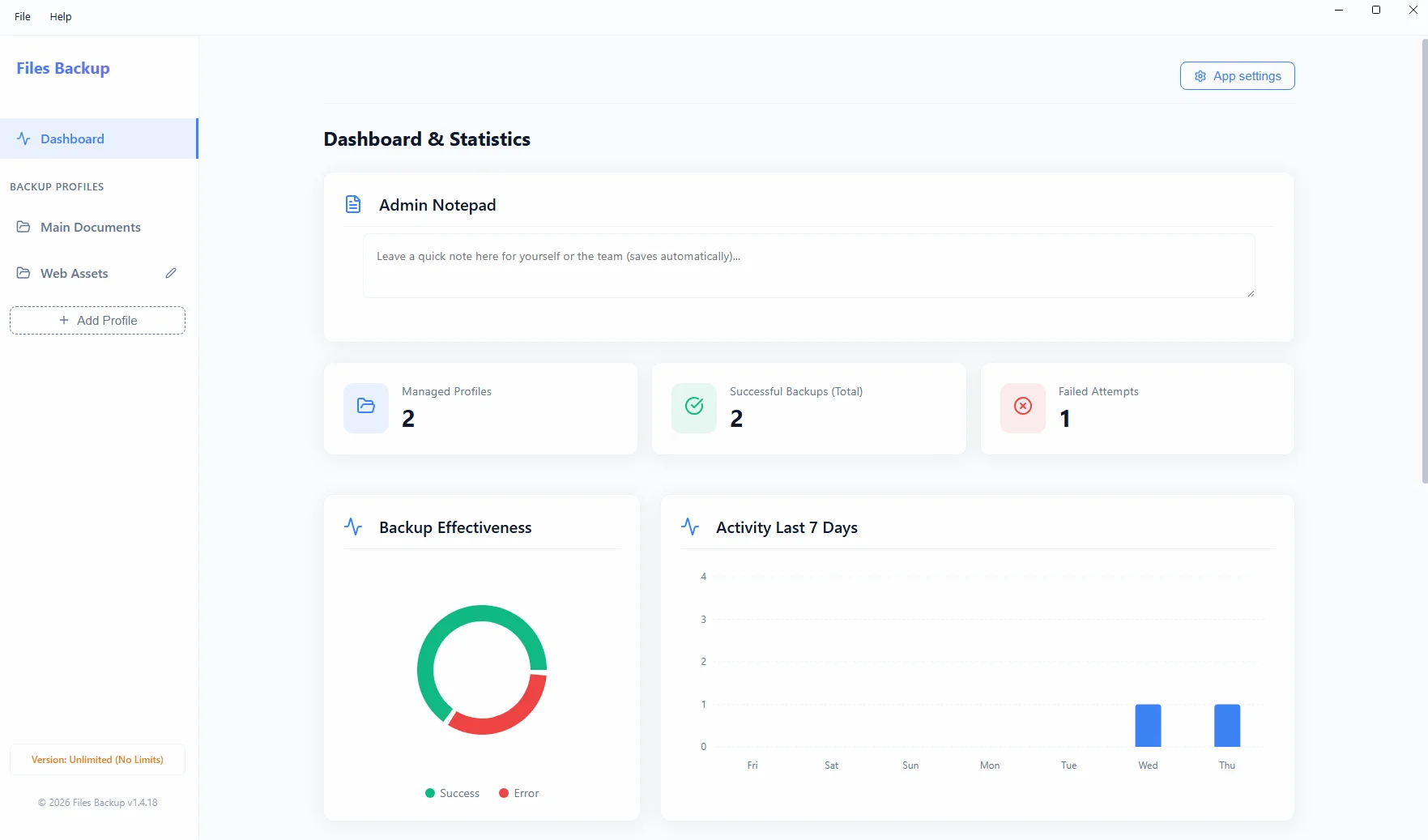
Files Backup Interface
The Files Backup interface archiving important files and configuration directories.

About the author

Jakub Półrolniczak – software engineer and data security expert (E-E-A-T). Passionate about Zero-Cloud architecture and reliable solutions for Windows operating systems. Creator of the Project Backup software family.

Logowanie Administratora

Zapomniałeś hasła?

Reset hasła

Podaj swój login. Nowe hasło zostanie wysłane na powiązany adres e-mail.

Wróć do logowania

Potwierdzenie

Czy na pewno chcesz wyczyścić wszystkie statystyki pobrań? Tej operacji nie można cofnąć.

Sukces

Notatka do licencji

How to install the application?

You are downloading a safe installation file directly from the manufacturer. Due to the fact that our application is new, Windows SmartScreen may display a blue warning window.

To complete the installation:

  1. Save and run the downloaded file .exe.
  2. When the blue Microsoft Defender window appears, click "More info".
  3. Then click the button "Run anyway" (or "Keep anyway" in the browser).

Request an Invoice

Fill in the details below to automatically generate an invoice (receipt). It will also be sent to your email address.

Produkt