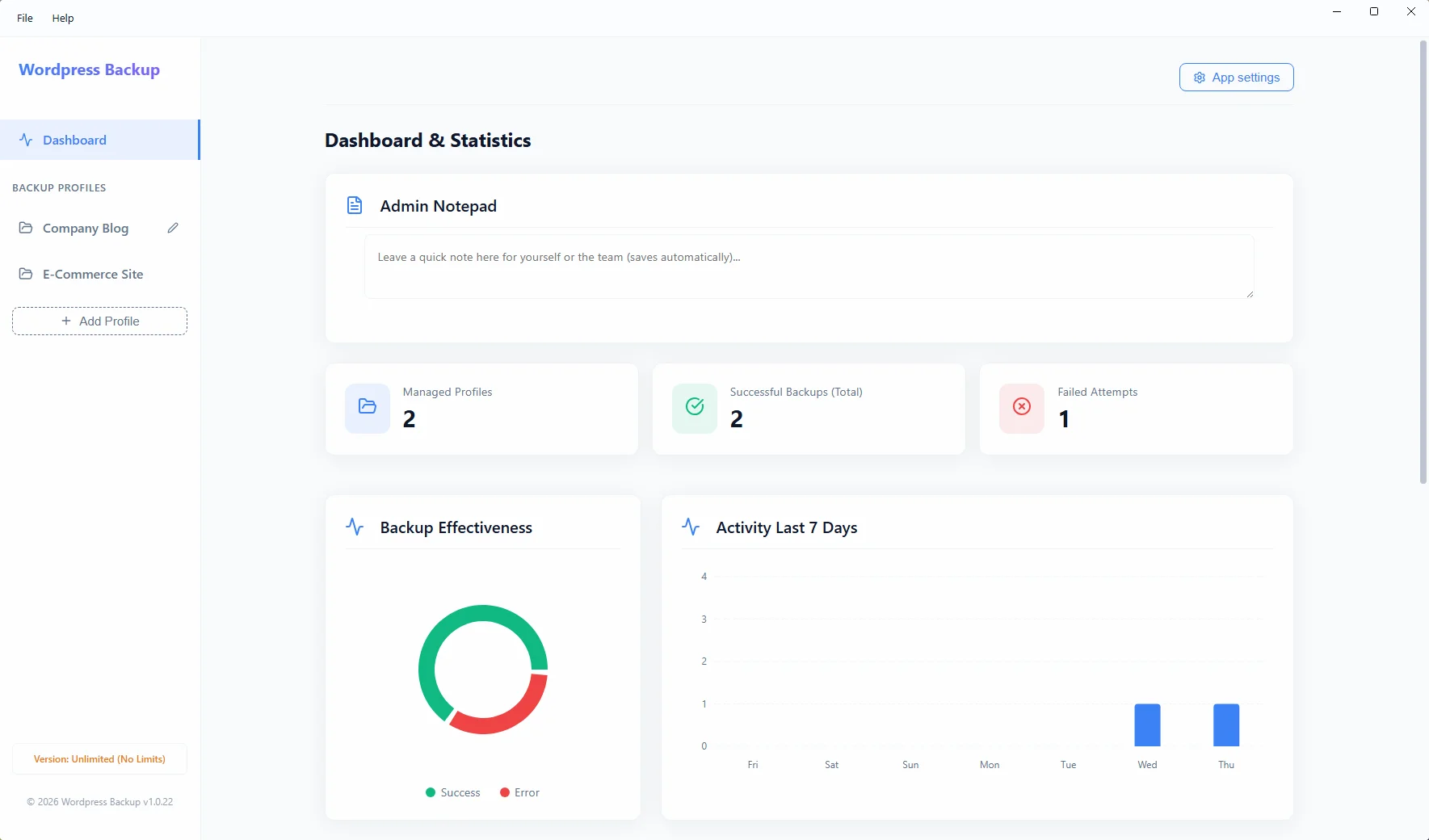
Plugins installed directly in the WordPress dashboard are the most popular way to back up, but are they the safest? When a site suffers a major failure, access to the admin panel is cut off, and with it, access to the restoration plugin itself.
Summary: Free plugins put a heavy load on your server's CPU and RAM, and in the event of the so-called "White Screen of Death" (Error 500), they become useless because you cannot log into them. An external windowed application for Windows, such as Wordpress Backup from Project Backup, operates completely independently of the site's failure itself. It connects via FTP and database from the outside, guaranteeing secure access to your archives regardless of the web server's status.
The "White Screen of Death" Problem (Error 500)
Imagine that after an unsuccessful theme or plugin update, your site displays only a white screen and returns an Error 500 (Internal Server Error). You cannot log into wp-admin. Your plugin-based archiving mechanism is also blocked! It is exactly at this moment that an independent, external PC application (Windows) shows its crushing advantage. You click "One-Click Restore" in the desktop program and instantly overwrite the broken files with a clean archive from your own hard drive.
Relieving Web Server Resources
Plugins force the PHP environment and the database into a massive effort when packing thousands of files. This causes performance drops in your WooCommerce store and site stuttering for clients. The external Wordpress Backup application shifts the burden of compression and verification outside the hosting server, freeing up essential CPU resources.